Look at Microsoft's website if below does not match your version and/or you need more help. Pictures may vary slightly due to version of Outlook.
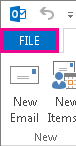
Go to File and select Account Information
To update existing email (to add an account scroll down to step 4):
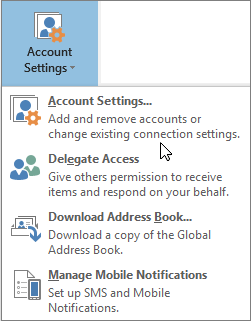
Click on account settings and from the drop menu click account settings
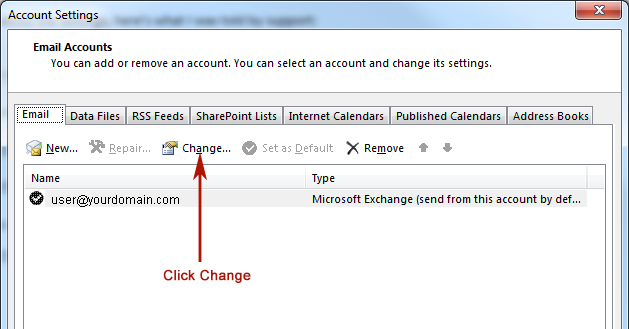
Select the email account you want to change, and then choose Change.
To add account (skip to step 7 if you are updating an account):
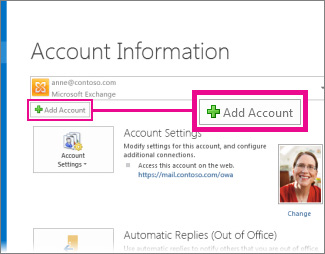
Under Account Information click on +Add Account
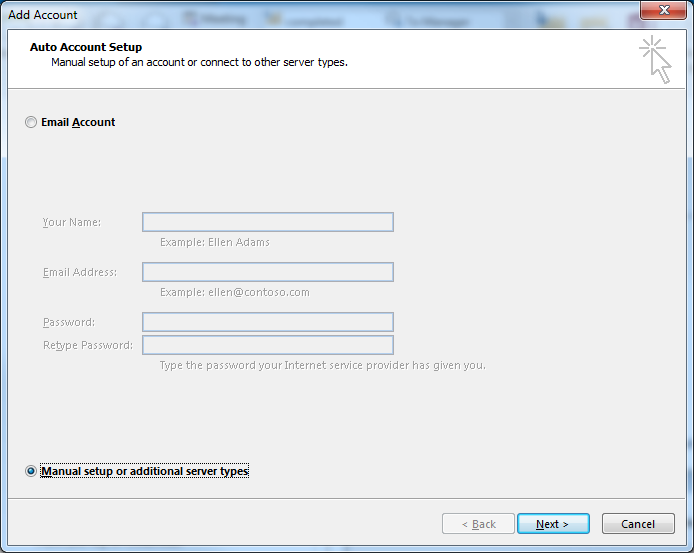
Choose Manual Setup followed by the Next button.
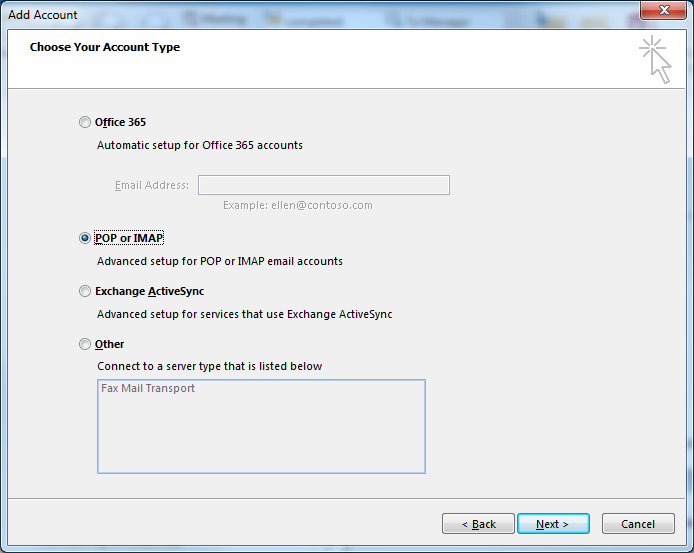
Select POP or IMAP followed by the next button.
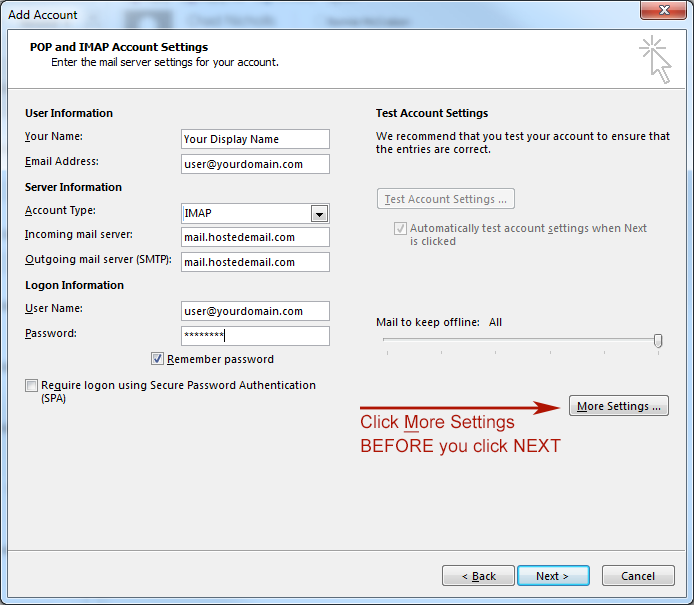
Add/modify account information, then click on the more settings button.
Your Name: How you want your name to appear in the from line of your emails.
Email Address: username@yourdomain.com
Account Type: IMAP
Incoming mail server: mail.hostedemail.com
Outgoing mail server (SMTP): mail.hostedemail.com
User Name: username@yourdomian.com
Password: check with your administrator if you do not have
Click on More Settings
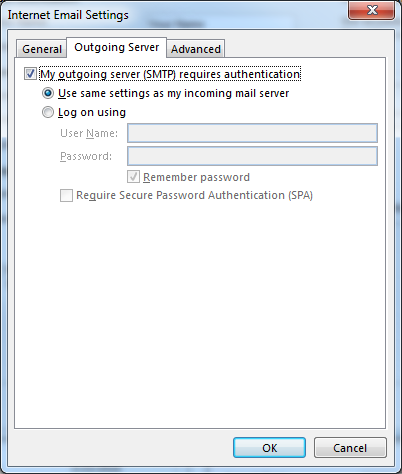
On the Outgoing Server tab click on My outgoing server (SMTP) requires authentatication
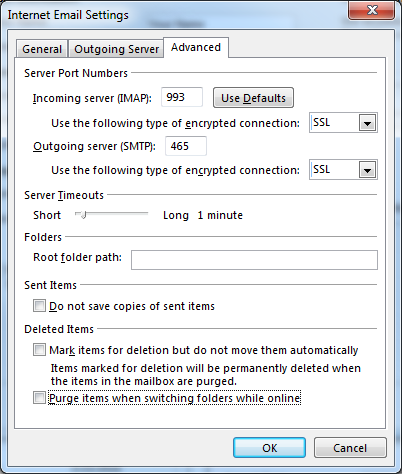
On the Advanced tab change the ports and then the OK button.
Incoming server (IMAP): 993
Use the following type of encrypted connection: SSL
Outgoing server (SMTP): 465
Use the following type of encrypted connection: SSL
Click OK
If you run into problems you can try one of these other ports:
Incoming server (IMAP): 143
Use the following type of encrypted connection:
None
Outgoing (SMTP): 25, 587 or 8025
Use the following type of encrypted connection: None
Incoming server (POP3) [not recommended]: 995
Use the following type of enctrypted connection: SSL
or
Incoming server (POP3) [not recommended]: 110
Use the following type of encrypted connection: None
You will be returned to Account Settings window. Click on the Test Account Settings
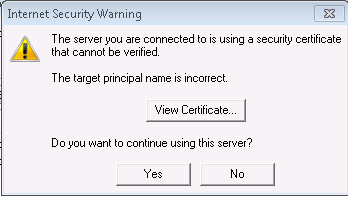
If you see the below warning select Yes
Your test should complete successfully, let us know if you run into problems
iPhone Screenshots
Go to settings
Scroll down to mail
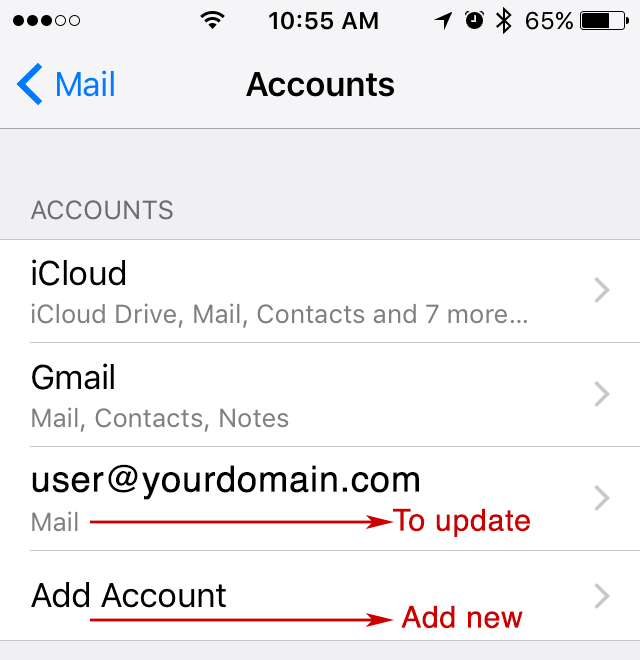
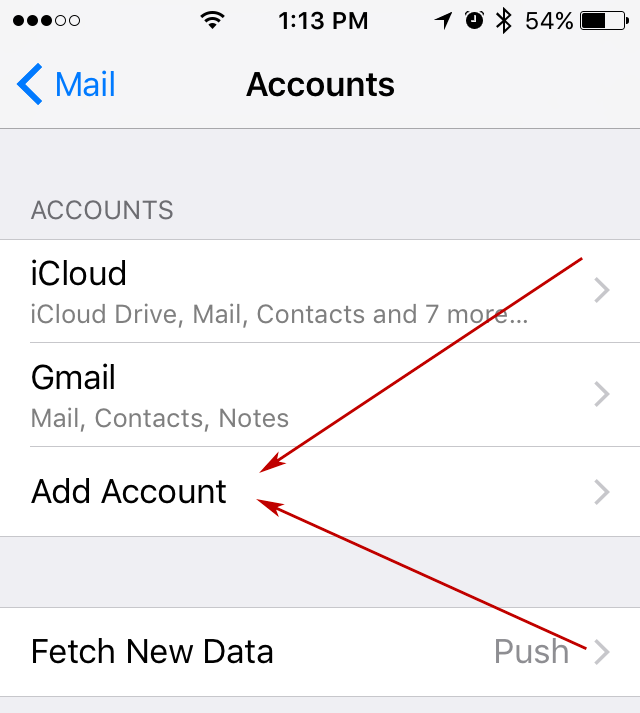
Click on your existing email to Update or click Add Account to add for the first time.
If updating account go to step 4, to add account scroll down to step 8.
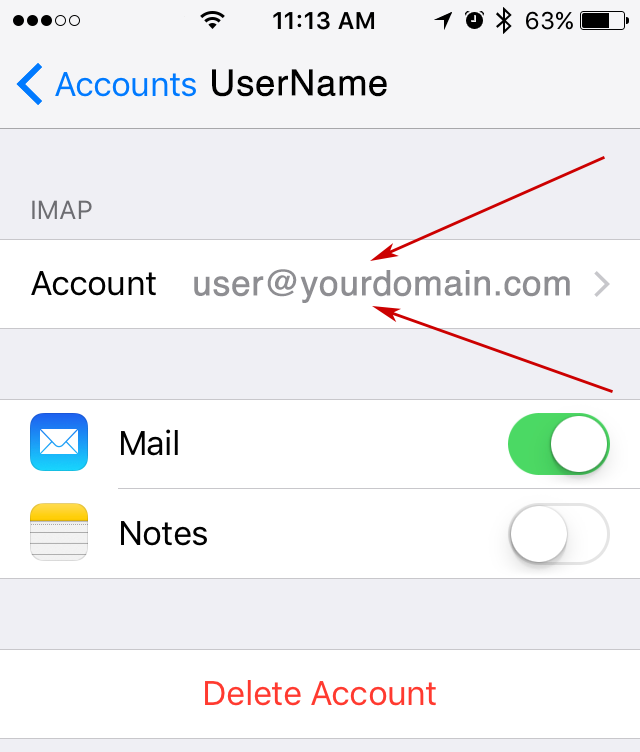
Click on your Account name
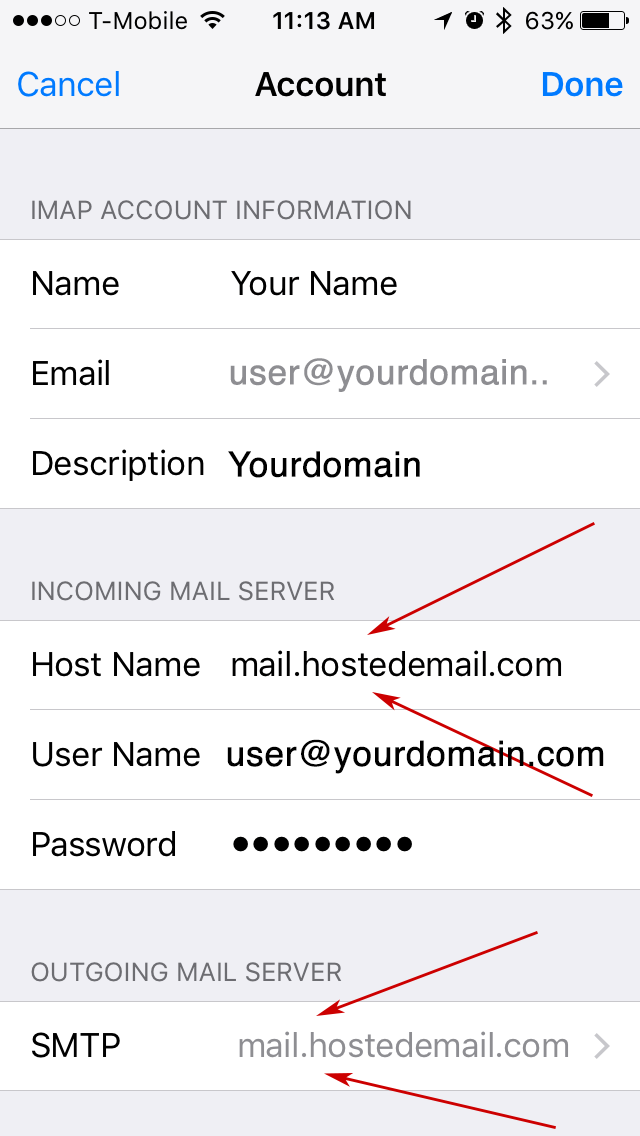
Update the host name, then click on the SMTP
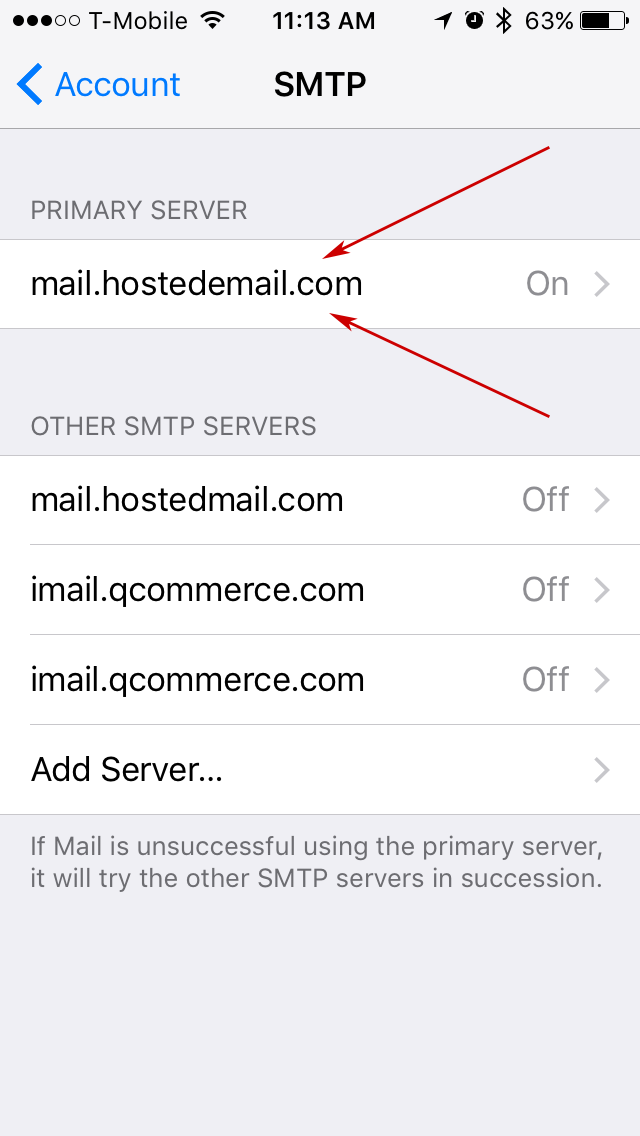
Click on the Primary Server
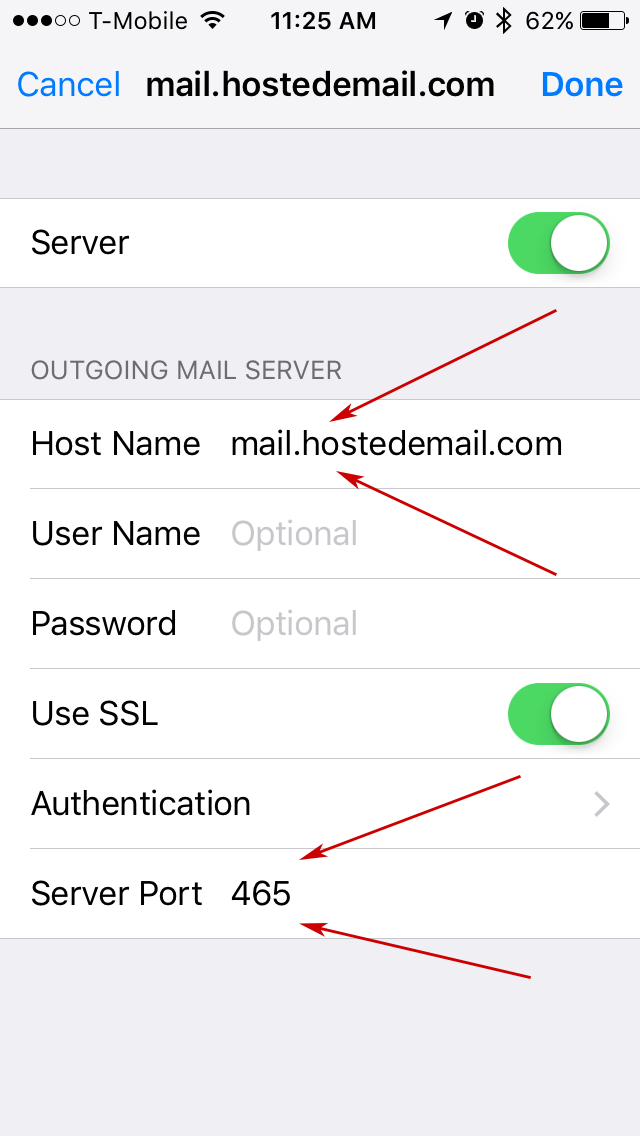
Verify the host name and server port
Port 465 requires SSL
Port 25, 587and 8025
turn off SSL
You should now be finished with updating account.
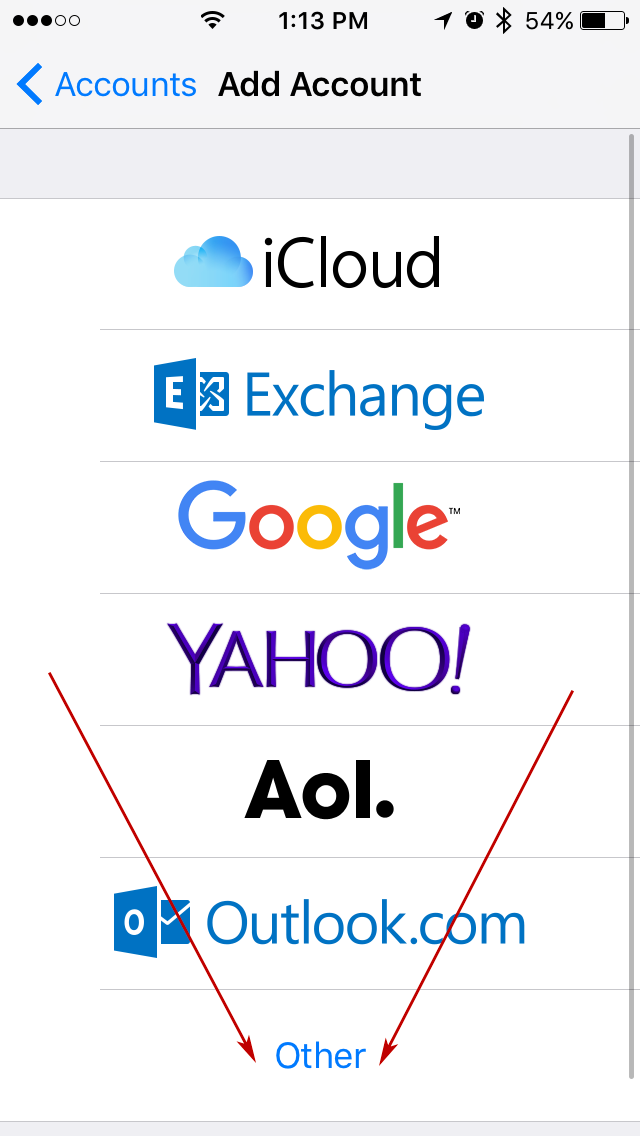
To add account select on Other
Click on Add Account
Choose Add Mail Account
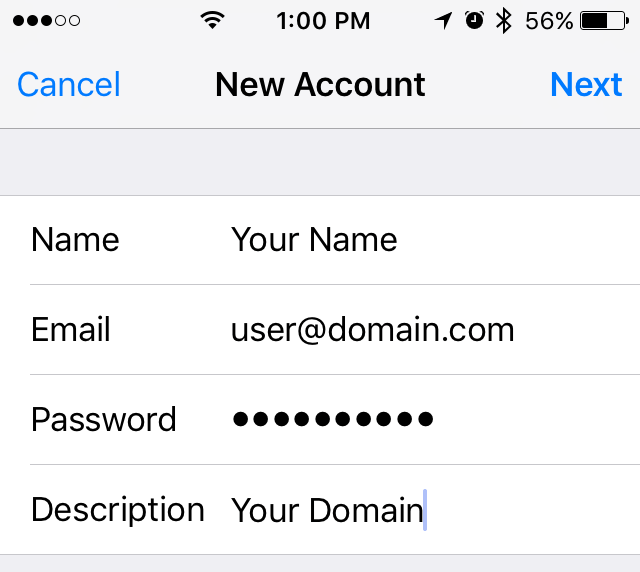
Enter information then click next
Enter Name: How you want your name to appear in the from line of your emails
Email: username@yourdomain.com
Password: check with administrator if you do not have
Description: How you will recognize this account
Click Next
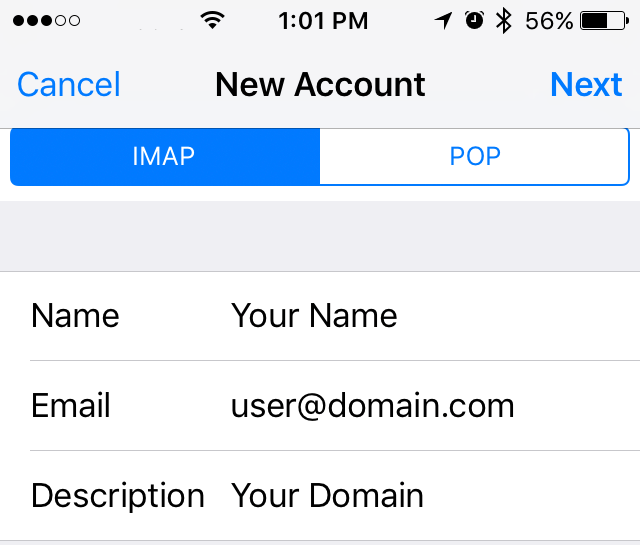
Enter information again
Enter Name: How you want your name to appear in the from line of your emails
Email: username@yourdomain.com
Password: check with administrator if you do not have
Description: How you will recognize this account
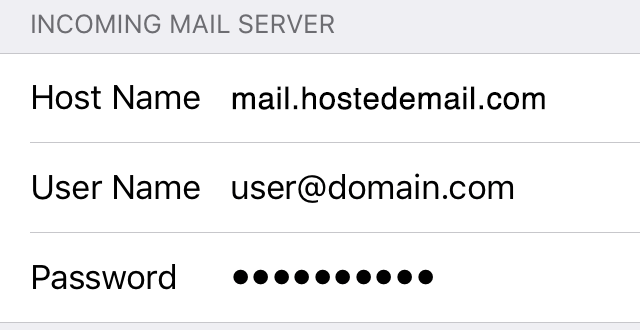
Incoming Mail Server
Host Name: mail.hostedemail.com
User Namel: username@yourdomain.com
Password: check with administrator if you do not have
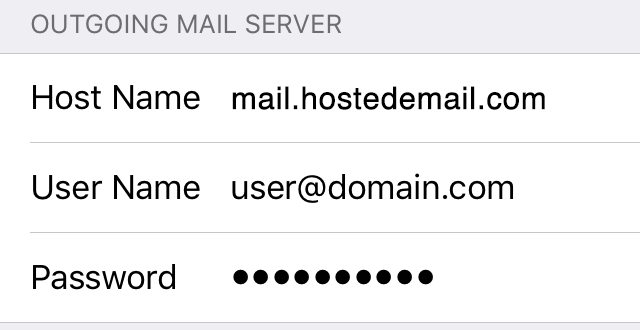
Outgoing Mail Server
Host Name: mail.hostedemail.com
Email: username@yourdomain.com
Password: check with administrator if you do not have
Click Next
Your phone will now verify the account
Your test should complete successfully, let us know if you run into problems